Make Video Background Transparent
Turn any video into a transparent overlay. Our AI removes the background, and you export a WebM video with an alpha channel that you can place on top of anything.
MP4, MOV or WebM. Processed in your browser — first 10 seconds.
Only the first 10 seconds of your video will have the background removed.
Transparent background videos for overlays and edits
A video with a transparent background lets you put a person on top of slides, gameplay, other footage or a live stream scene without a green screen. BehindVideo removes the background with AI and exports a WebM file that keeps the transparency, so it drops straight into editors and streaming software that support alpha video.
How to make a video background transparent
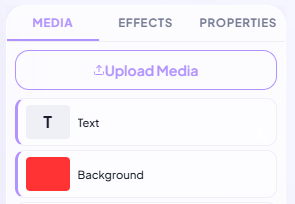
Upload your video
Drop your video onto the upload field. The AI removes the background of the first 10 seconds automatically.
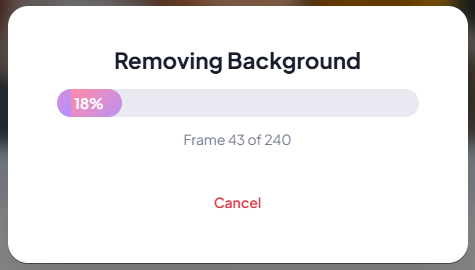
Check the cut-out
Preview the result on a checkerboard — that pattern shows which parts are transparent. Open the editor to process a longer clip.
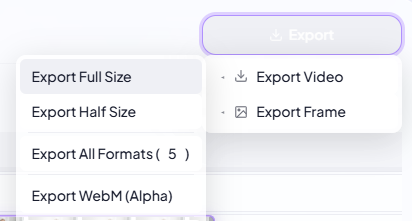
Export as transparent WebM
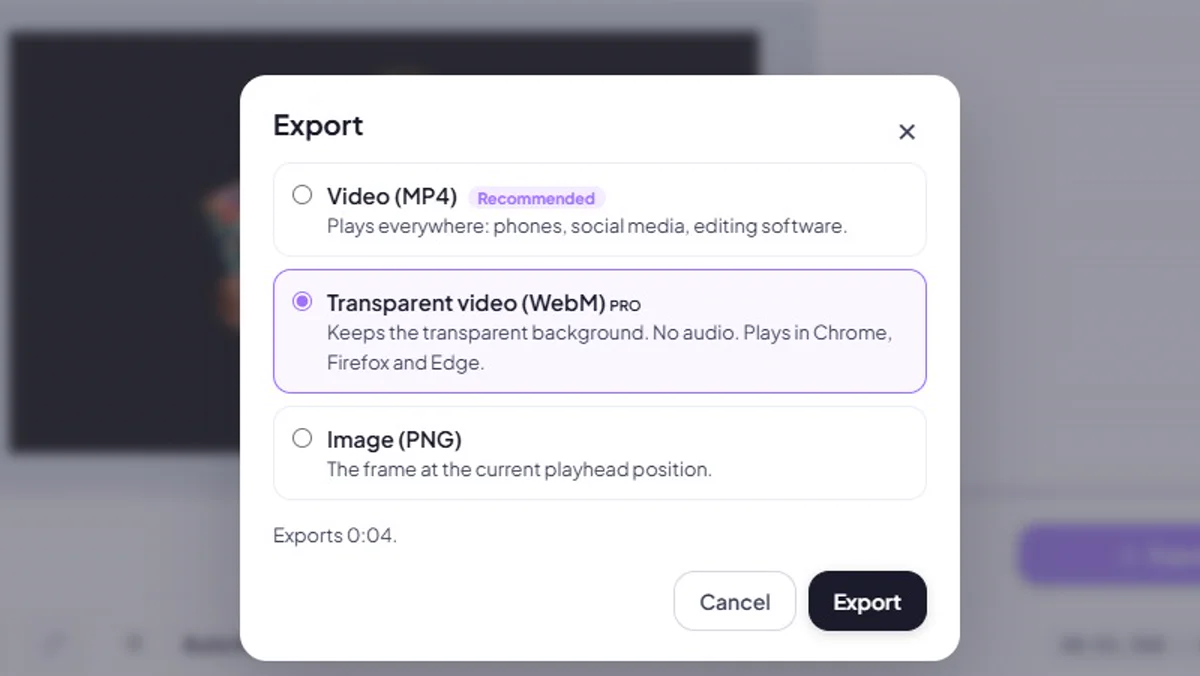
Choose "Transparent video (WebM)" in the export dialog. The file keeps the alpha channel and is ready to use as an overlay.
A real transparent video, not a black background
MP4 cannot store transparency, which is why most tools give you a black or green background. The WebM export keeps a real alpha channel, so the area around the person is truly see-through when you place the video on top of other content.
Ready for overlays, edits and streams
Use the transparent clip as a presenter overlay on a tutorial, a reaction in the corner of a video, a cut-out in a music video or a talking head in your stream layout. Chrome, Firefox and Edge play transparent WebM, as do streaming tools like OBS and some video editors.
Film anywhere, cut out later
You don't need a green screen, special lighting or keying skills. Record wherever you are and let the AI do the cut-out — with good, even light for the cleanest edges.
More than a single tool
Everything you need to finish your video, in one browser-based editor.
Background removal
Cut people out of any video with AI — no green screen, no masking by hand.
Text & titles
35 fonts, outlines, shadows and keyframe animation for every text layer.
Multi-layer timeline
Stack video, images, text, shapes and audio on separate layers.
Effects & colour
Blur, brightness, contrast, saturation, hue, crop and masks per clip.
Music & sound effects
100+ sound effects, 50+ music tracks and stock video clips built in, plus your own media.
Every format
Landscape, portrait (9:16), square and 4:5 — ready for each platform.