Free Online Tool

Add Text to Video

Add professional text overlays to your videos in just a few clicks. Customize fonts, colors, sizes, and animations — all from your browser, no software required.

Add Text to Your Video See How It Works
★★★★★ 4.8 / 5 — Loved by 50,000+ creators
[ Editor Screenshot — Text Overlay Tool ]

Trusted by creators worldwide

YouTube TikTok Instagram Twitch Vimeo

Add Professional Text to Videos in a Few Clicks

Whether you're creating marketing videos, social media content, or educational tutorials — BehindVideo's text tool makes it easy to add titles, captions, and animated text overlays. Drag and drop your text anywhere on the video, customize fonts and colors to match your brand, and preview how it looks on every platform.

Simple Workflow

How to Add Text to a Video

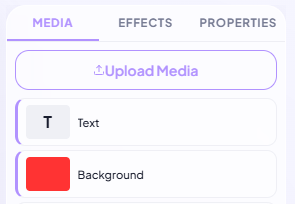
[ Upload Preview ]
1

Upload Your Video

Upload a video file from your device, or drag and drop it into the editor. We support MP4, MOV, AVI, WebM and more.
[ Text Customization Preview ]
2

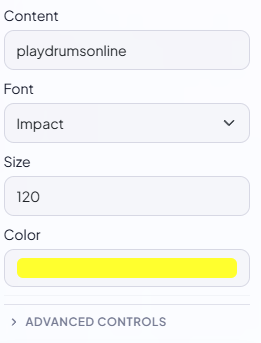
Add & Customize Text

Click to add text anywhere on your video. Choose from hundreds of fonts, adjust size, color, and add animations like fade, slide, or typewriter effects.
[ Export Preview ]
3

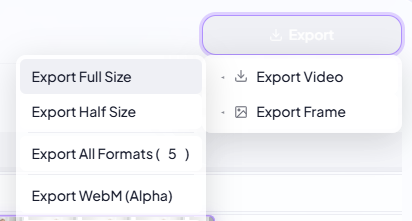
Export & Share

Once you're happy, export your video in HD or 4K. Share directly to YouTube, TikTok, or Instagram — or download to your device.
[ Marketing Video Example ]
Marketing

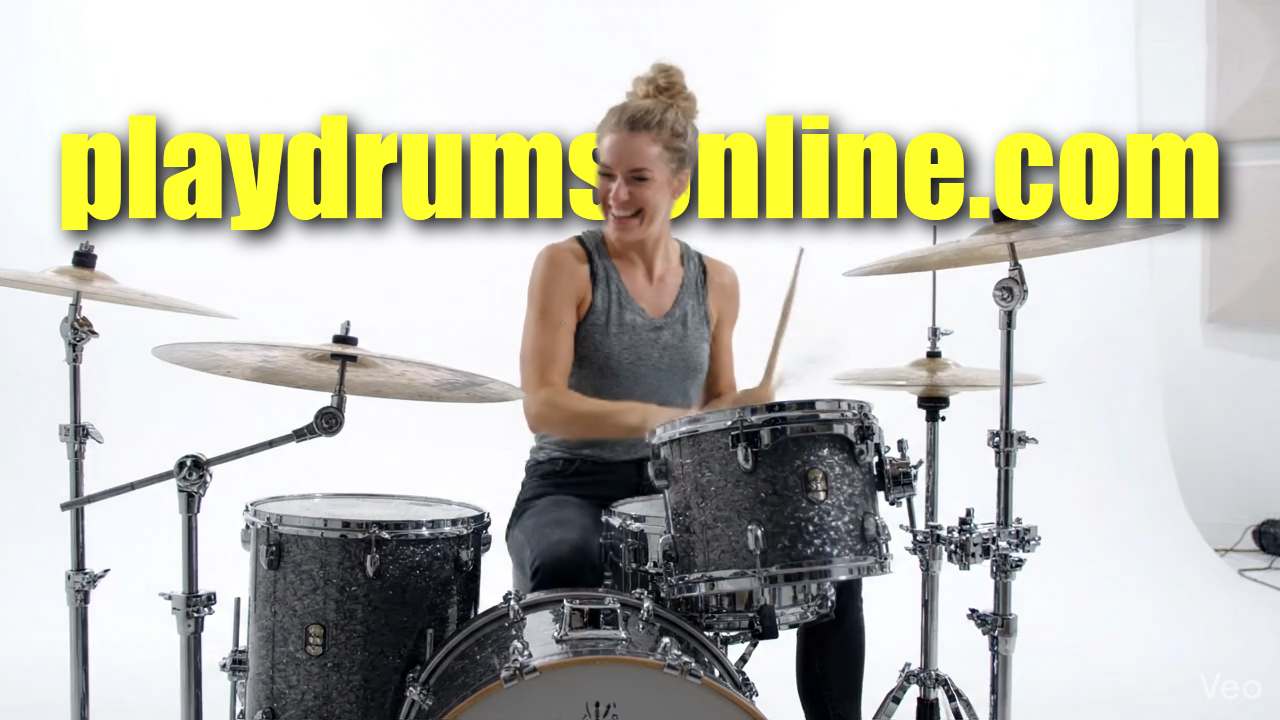
Create Scroll-Stopping Marketing Videos

Grab attention in the first second by adding bold titles and call-to-action text to your videos. Perfect for ads, product launches, and social media campaigns. Use brand colors and custom fonts to maintain consistency across your video content.
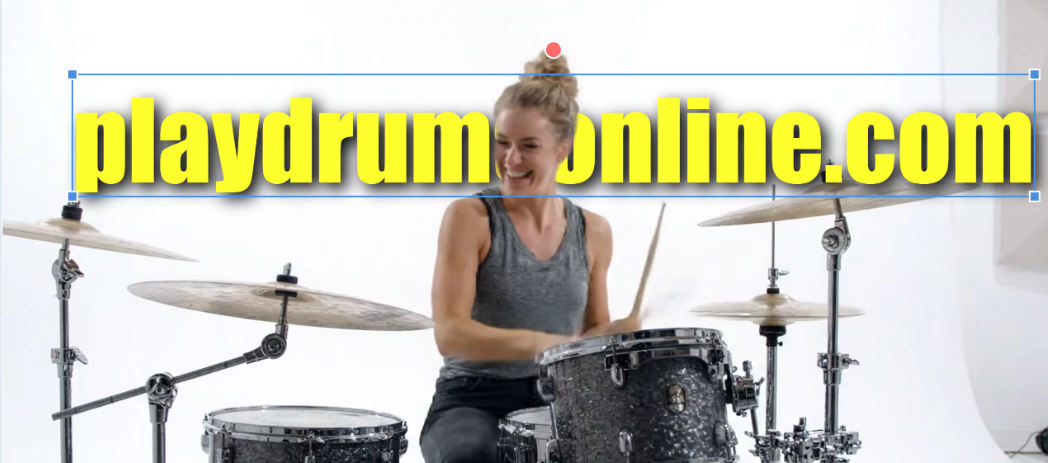
[ Drag & Drop Editor ]
Easy Editing

Simple Drag-and-Drop Text Editor

No design skills needed. Our intuitive editor lets you position text with pixel precision. Control timing down to the frame — decide exactly when text appears and disappears. Resize, rotate, and layer multiple text elements effortlessly.

[ Text Animation Preview ]
Animations

Animated Text That Pops

Choose from smooth text animations — typewriter, glitch, bounce, slide, or fade — to make your message stand out. Combine with our AI background removal to place text behind subjects for the trending depth effect seen on TikTok and Instagram Reels.

User Stories

Loved by Creators Everywhere

★★★★★

"BehindVideo has been game-changing for our social media team. We can add branded text overlays in minutes instead of hours."

User
Emily Tran
Social Media Manager
★★★★★

"I use this for every YouTube thumbnail and intro. The text animations are smooth and the export quality is outstanding."

User
Daniel Park
YouTube Creator
★★★★★

"Finally a browser-based tool that doesn't feel clunky. Adding captions and titles is incredibly fast."

User
Lisa Novak
Content Creator

Frequently Asked Questions

Upload your video to BehindVideo's free editor, click the text tool, and type your message. Position it anywhere on the frame, customize the font, size, color, and animation, then export. No software download required — everything runs in your browser.

Yes! BehindVideo's text tool is completely free to use. You can add text overlays, change fonts, and export in 720p at no cost. Upgrade to a paid plan for 4K exports, custom brand fonts, and unlimited projects.

Absolutely. BehindVideo supports MP4, MOV, AVI, WebM, and many other formats. Simply upload your MP4 file, add your text, and export — your video stays in high quality throughout the process.

Yes. Choose from hundreds of built-in fonts or upload your own brand fonts. Pick any color, add text shadows, outlines, and backgrounds. You have full control over the look and feel of every text element.

Yes! BehindVideo offers multiple text animation styles including fade-in, slide, typewriter, bounce, and glitch effects. Control the timing, duration, and easing of each animation to match your video's style.

This trending effect places text behind a person or subject in your video, creating a dynamic depth look. BehindVideo's AI automatically separates the subject from the background, letting you insert text layers in between — no manual masking required. Learn more about the text behind person effect →

Ready to Add Text to Your Video?

Start editing for free — no account required.

Open the Editor